Get started now

Frequently asked questions


Once you’re set up, the RepSpert Portal guides you step by step through managing and acting on your reviews.
After accepting your invitation and setting your password, you’ll land directly on the Dashboard, where your most recent one-star reviews are displayed first so you can take action immediately.

At the top of the dashboard, you’ll see key metrics such as total reviews, average rating, active removal requests, and negative reviews.Use filters to narrow reviews by platform, rating, or account, or click “View All” to see your full review list.
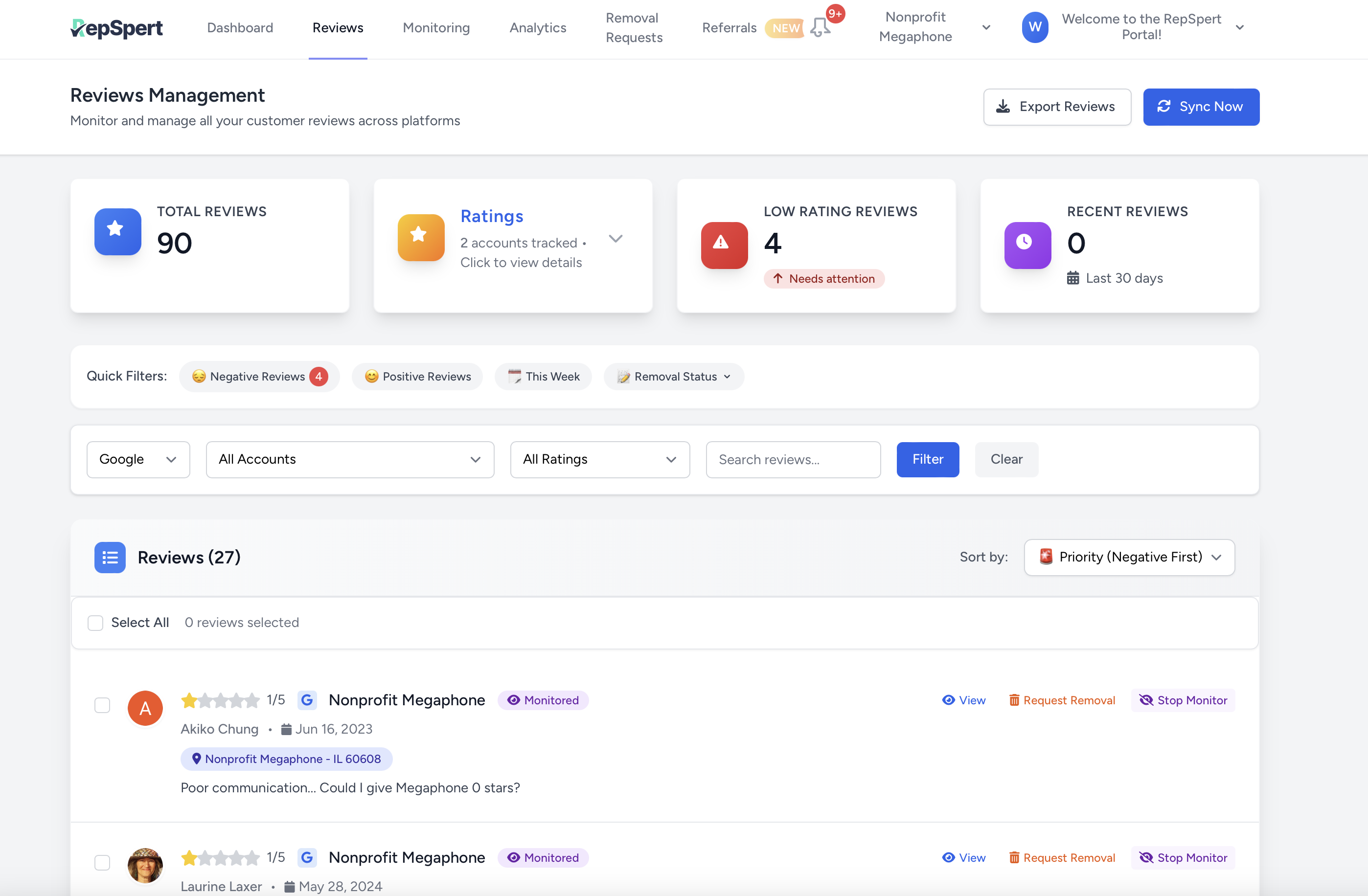
In the Reviews tab, select one or multiple reviews and click “Request Removal.”
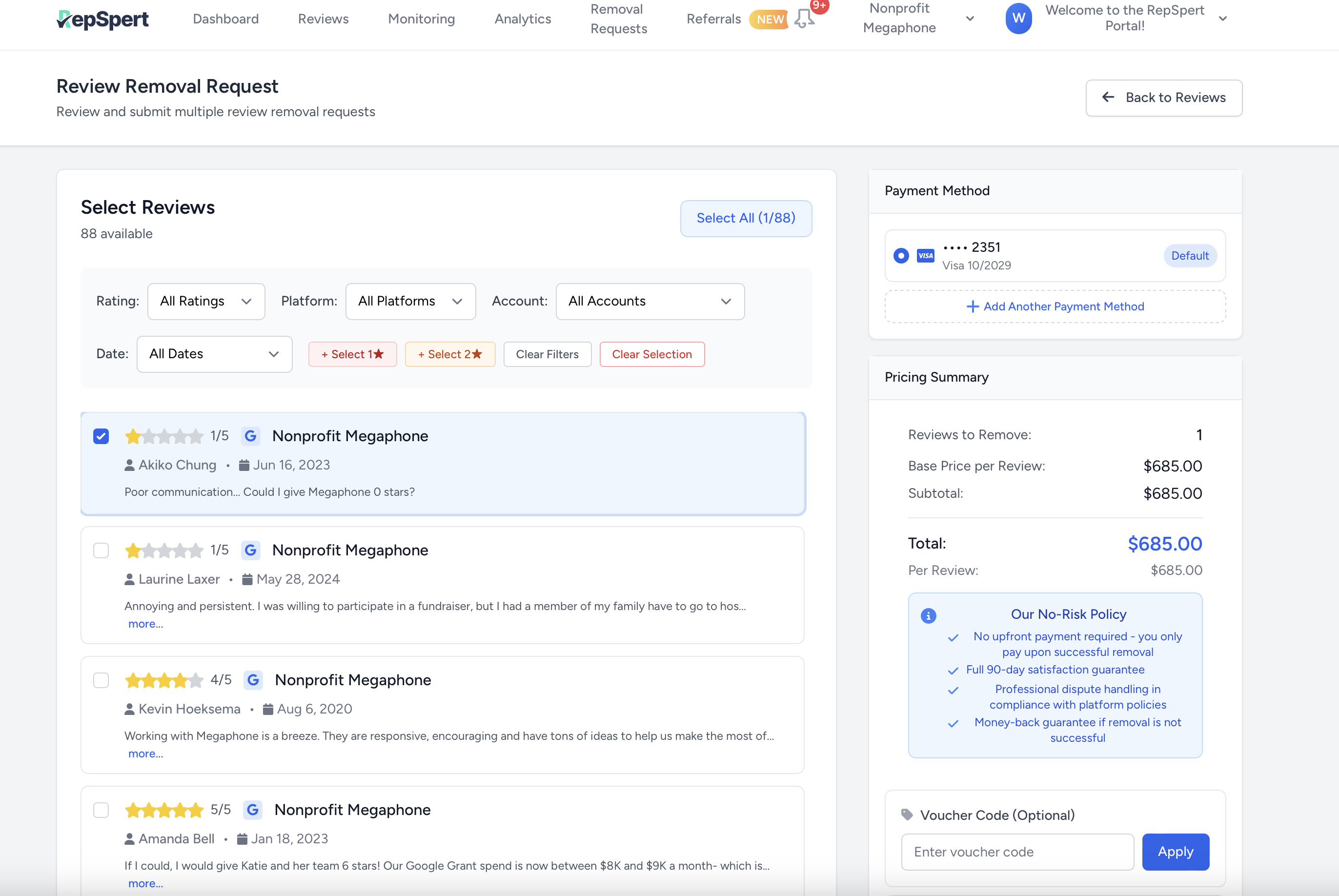
Choose a saved payment method, apply a voucher code if applicable, and submit. Your request will immediately move into a tracked status.
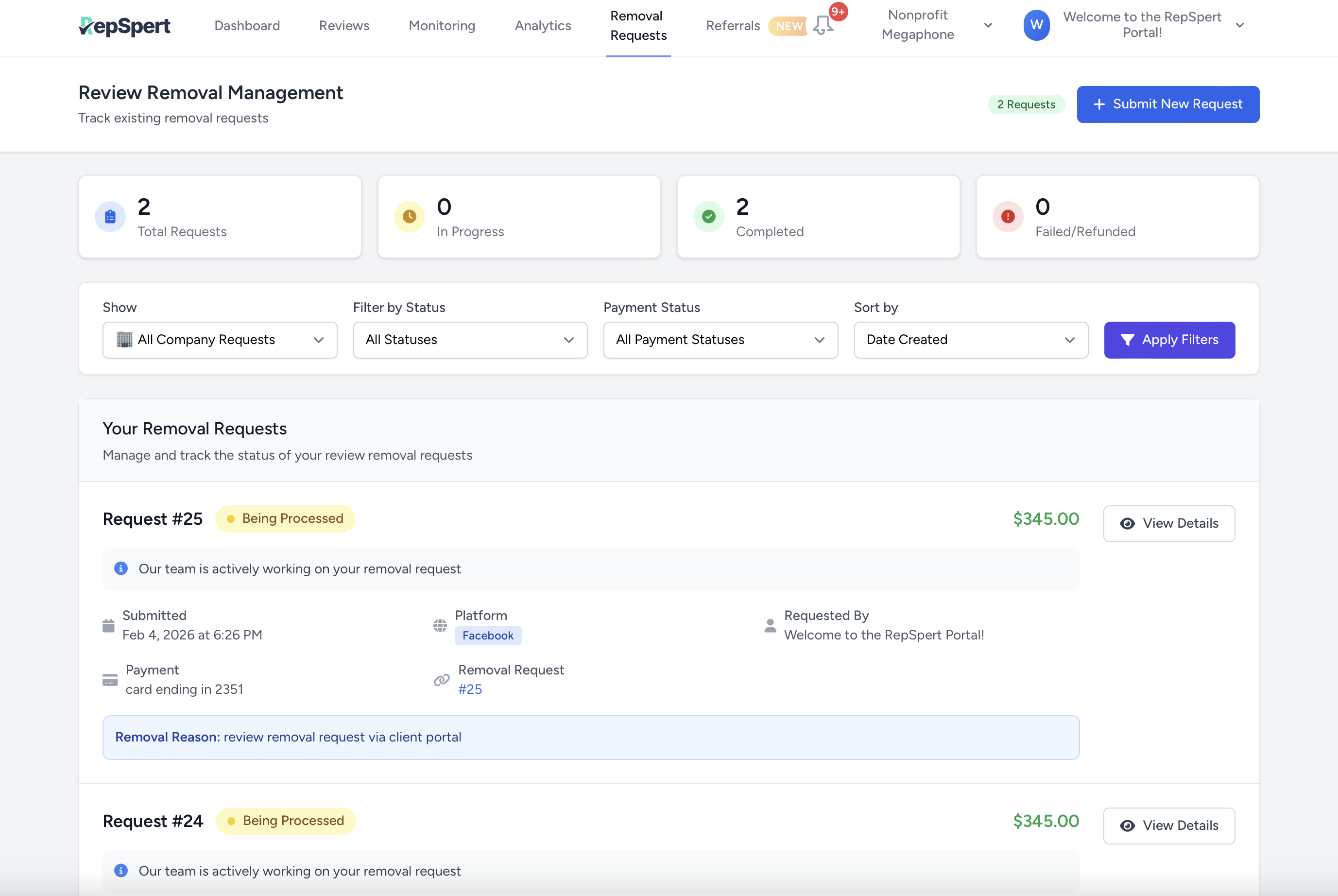
Each request is clearly labeled (Requested, Processing, Completed/Removed) so you always know where things stand.You’ll receive in-portal notifications as reviews are detected, updated, or successfully resolved.

The RepSpert Portal is designed to make review management clear and predictable for clients:


Hear from businesses that trust RepSpert for their reputation management:
“This company is legitimately the real deal in helping business owners maintain a solid, honest online reputation. If someone maliciously attacks your online profile with false negative reviews, they are swift in getting them removed from your profile that you work so hard to maintain by providing excellent products or services to your clients!” - Leeza Byers
“Amazing company and amazing people! I had a fake and damaging review on my business account and the team at RepSpert was able to get the review removed within just a few days. I highly recommend them to any business owner.” - Joe Tekulve
“Fast. Affordable. They did provide the requested services for the agreed upon price. Thank you.” - Russ Cline
“I cannot give enough stars. This company did exactly what they said they would do when they said they would do it! Thank you so much!!!” - Michael Ray
You can connect major platforms including Google and Facebook.
Yes. You can add multiple users under one company.
Yes, all users attached to the same company can see the same removal requests and status updates.
Yes, reviews and updates are shared at the company level, so everyone sees the same information.
Go to the Reviews tab, select one or more reviews, then click Request Removal and follow the steps.
You can track status directly in the Dashboard and the Reviews tab (e.g., Requested, Processing, Completed/Removed).
Reviews sync every 24h, and you can trigger a manual refresh anytime using the Sync button.
Go to Manage Account → Add Platform to connect additional locations/platforms.
You’ll receive in-app notifications when a new negative review appears and when a removal request status changes.
Use the Contact Support button in the portal.

